In the ever-evolving landscape of digital connectivity, the humble USB connector has become an indispensable part of our daily lives. From charging our smartphones to transferring vast amounts of data, USB ports and cables are ubiquitous. However, the casual user might not realize the distinct differences between the various USB connector types, leading to confusion and frustration. Among the most prevalent, yet often misunderstood, are USB Type-A and USB Type-B. This article aims to demystify these two fundamental connector types, exploring their historical context, design characteristics, ideal use cases, and the crucial factors to consider when choosing between them.
The Genesis of USB Connectors
The Universal Serial Bus (USB) standard was first introduced in the mid-1990s with the ambitious goal of simplifying peripheral connections. Before USB, connecting devices like printers, keyboards, and mice often involved a messy array of proprietary ports and drivers. USB aimed to create a standardized, plug-and-play experience that would work across different manufacturers and operating systems.
The initial USB specification (USB 1.0 and 1.1) laid the groundwork for the connectors we recognize today. Two key players emerged: Type-A and Type-B. Their design was intentionally asymmetrical, preventing users from inserting them incorrectly and potentially damaging the port or device. This simple yet effective design philosophy has largely endured, though the specifications for data transfer speeds and power delivery have seen significant advancements over the years.
Understanding USB Type-A: The Ubiquitous Standard
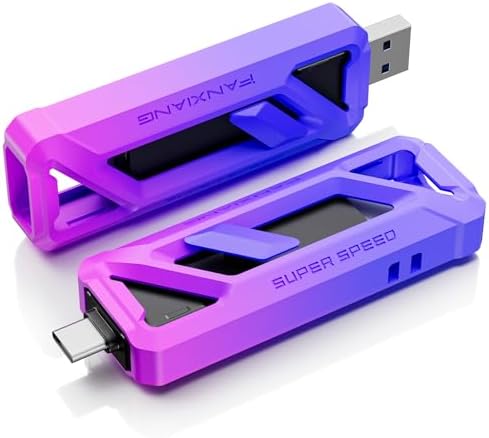
The USB Type-A connector is arguably the most recognizable and widely adopted USB connector. Its rectangular, flat shape has become synonymous with the “USB port” for most people.
Key Characteristics of Type-A:
- Design: Rectangular and flat, designed to be inserted in only one orientation.
- Prevalence: Found on host devices such as computers, laptops, game consoles, and power adapters.
- Function: Primarily used to connect peripheral devices to a host.
- Variations: While the physical shape of the Type-A connector has remained largely consistent, its underlying USB standard has evolved significantly. This means a Type-A port could support USB 2.0 (480 Mbps), USB 3.0/3.1 Gen 1 (5 Gbps), USB 3.1 Gen 2 (10 Gbps), or even USB 3.2 (up to 20 Gbps). Visually, USB 3.x Type-A ports often feature blue plastic inside the connector to distinguish them from older USB 2.0 ports.
Where You’ll Find Type-A:

The ubiquity of Type-A is undeniable. It’s the port you’ll most likely encounter when:
- Plugging in a mouse or keyboard to your computer.
- Connecting a USB flash drive for data storage.
- Charging your devices via a wall adapter or portable power bank.
- Hooking up external hard drives or webcams.
- Connecting gaming controllers to your console.
Essentially, if you have a device that needs to connect to a computer or receive power, chances are it will utilize a Type-A connector on one end of the cable.
Exploring USB Type-B: The Peripheral Powerhouse

In contrast to the host-centric Type-A, the USB Type-B connector is primarily designed for peripheral devices. Its shape is more square and often slightly thicker, again ensuring a single, correct insertion.
Key Characteristics of Type-B:
- Design: Square and thicker than Type-A, also designed for one-way insertion.
- Prevalence: Found on the peripheral device side of the connection, such as printers, scanners, external hard drives, and some audio interfaces.
- Function: Allows peripheral devices to communicate with a host device (typically via a Type-A connector on the host’s cable).
- Variations: Similar to Type-A, Type-B connectors have also seen revisions to support faster USB standards. The most common variations include:
- Standard Type-B: The original, larger square connector.
- Mini-USB Type-B: Smaller, once common on cameras and older mobile devices.
- Micro-USB Type-B: Even smaller, prevalent on smartphones and other portable electronics before the widespread adoption of USB-C.
- USB 3.0 Type-B: Wider than the standard Type-B, designed to accommodate the higher bandwidth of USB 3.0 and above. These often have a blue color accent.
Typical Use Cases for Type-B:
The Type-B connector’s role is to facilitate the connection of more substantial peripheral devices back to the main computing hub. You’ll commonly find it on:
- Printers and Scanners: The classic example, where a Type-B cable connects the printer to a computer.
- External Hard Drives: Many desktop external hard drives utilize a Type-B port for their connection.
- Audio Interfaces and MIDI Controllers: Professional audio equipment often employs Type-B for robust data transfer.
- Some older external optical drives.
It’s important to note that while Type-A is the host’s standard, Type-B has diversified significantly over time to accommodate smaller and more power-intensive peripherals. However, the physical Type-B connector itself is less common on newer, smaller consumer electronics that have largely transitioned to USB-C.
Choosing the Right Connector: Key Considerations
The decision of which USB connector to choose, or rather, which cable to use, depends entirely on the devices you are connecting. The key principle is that one end of the cable will typically feature a Type-A connector to plug into the host (your computer, charger), and the other end will be specific to the peripheral device.
1. Identify Your Devices:

The first and most crucial step is to examine the ports on both the device you’re connecting *from* (e.g., your laptop) and the device you’re connecting *to* (e.g., your printer). This will dictate the type of USB cable you need.
2. Understand the “Host” vs. “Peripheral” Role:

Generally, your computer, laptop, or power adapter is the “host.” It initiates the connection and provides power. Peripheral devices (printers, external drives, mice) are the “clients” that connect to the host. Type-A is predominantly found on the host side, while Type-B is found on the peripheral side.
3. Consider the USB Standard (Speed and Power):

Beyond the physical connector shape, the underlying USB standard is paramount. A USB 3.2 Type-A port and cable will offer significantly faster data transfer speeds than a USB 2.0 Type-A port and cable. Similarly, the amount of power a port can deliver also varies by standard.
- USB 2.0: 480 Mbps, typically 500mA of power.
- USB 3.0/3.1 Gen 1: 5 Gbps, typically 900mA of power.
- USB 3.1 Gen 2/USB 3.2 Gen 1×1: 10 Gbps, typically 900mA of power.
- USB 3.2 Gen 2×2: 20 Gbps, typically 900mA of power.
Using older, slower cables with newer, faster ports will limit your performance. Conversely, attempting to use a high-speed USB 3.x cable with only USB 2.0 ports won’t yield any speed benefits beyond USB 2.0 capabilities.
4. Mini-USB and Micro-USB: A Look Back
While less common on new devices, you might still encounter Mini-USB and Micro-USB Type-B connectors on older cameras, MP3 players, and some smartphones. If your older device has one of these ports, you’ll need a corresponding Mini-USB or Micro-USB cable that typically terminates in a standard Type-A connector for connection to a modern computer or charger.
5. The Rise of USB-C: A Unified Future?
It’s impossible to discuss USB connectors without mentioning USB-C. This reversible, oval-shaped connector is designed to replace all previous USB connector types. It supports the highest USB transfer speeds, Power Delivery for charging even high-power devices, and DisplayPort Alternate Mode for video output. As USB-C becomes more prevalent, the need to differentiate between Type-A and Type-B will diminish for many new devices.
Case Study: The Printer Predicament
Imagine you’ve just bought a new all-in-one printer. The printer itself has a square-ish port labeled “USB.” Your computer has several rectangular USB ports. You’ll need a USB cable with a Type-B connector on the printer end and a Type-A connector on the computer end. If your printer and computer both support USB 3.0 or higher, and you want the fastest possible driver downloads or scan speeds, you’d opt for a USB 3.0 Type-B to Type-A cable. If you only need basic printing, a USB 2.0 cable will suffice, though it might be less expensive.
Statistics Highlight: Adoption of USB Standards
According to industry reports, USB 3.x is steadily gaining market share. While USB 2.0 remains prevalent in many legacy devices, the trend for new devices is towards USB 3.0 and above, especially with the increasing demand for faster data transfer for high-resolution media and large file sizes. For instance, a significant portion of laptops and desktops manufactured in the last few years feature at least one USB 3.0 or higher port.
Decoding the Connector Code
Choosing the right USB connector type, or more accurately, the right USB cable, boils down to understanding the roles of your devices and the specific USB standard they support. USB Type-A remains the king of host connectivity, found on computers, chargers, and other devices that initiate data transfer or provide power. USB Type-B, in its various forms (standard, Mini, Micro, and USB 3.0), is the workhorse for peripheral devices, connecting them back to the host. As the tech industry continues its march towards simplification and standardization, the emergence of USB-C promises to consolidate these distinctions into a single, versatile connector. However, for the foreseeable future, navigating the world of USB Type-A and Type-B will remain a fundamental skill for anyone connecting electronic devices. By paying close attention to the ports on your gadgets and the specifications of your cables, you can ensure seamless and efficient connectivity, avoiding the frustration of mismatched connectors and unlocking the full potential of your digital ecosystem.